PHP is the language that runs WordPress, Joomla, PrestaShop, Moodle and most websites. Each version gets security patches only for a while; after that, its known flaws stay open forever. If you got a security notice from us or a scan flagged a “vulnerable PHP version”, this is why.
Which versions no longer get patches
- PHP 7.4, 8.0 and 8.1: no security patches. If your site runs one of them, you should update.
- PHP 8.2: gets security patches until the end of 2026.
- PHP 8.3, 8.4 and 8.5: the recommended ones today, if your site and its add-ons are compatible.
On our hosting servers you have 7.4 through 8.5 available, and you choose.
Before changing: three checks
- Update your application first. In WordPress: core, plugins and theme. An abandoned plugin is what fails most with a new PHP; if it has had no updates for years, find a replacement.
- Check compatibility. In WordPress, Tools → Site Health warns you about problems. For other applications, check the PHP version their documentation requires.
- Have a recent backup. Your hosting makes daily backups with JetBackup; if you want your own, download it first. See JetBackup.
How to change it
Step by step in How can I change my version of PHP? In short:
- In the new cPanel: Websites and applications → Manage on the domain → Settings tab → PHP version. The PHP column of the websites list shows each domain's version.
- Extensions and options (such as
memory_limit) are changed in Select PHP Version, which is in the classic design (“Classic cPanel theme” button at the top right → Software). Note: if you set a version on a domain from “Settings”, it wins over the selector.
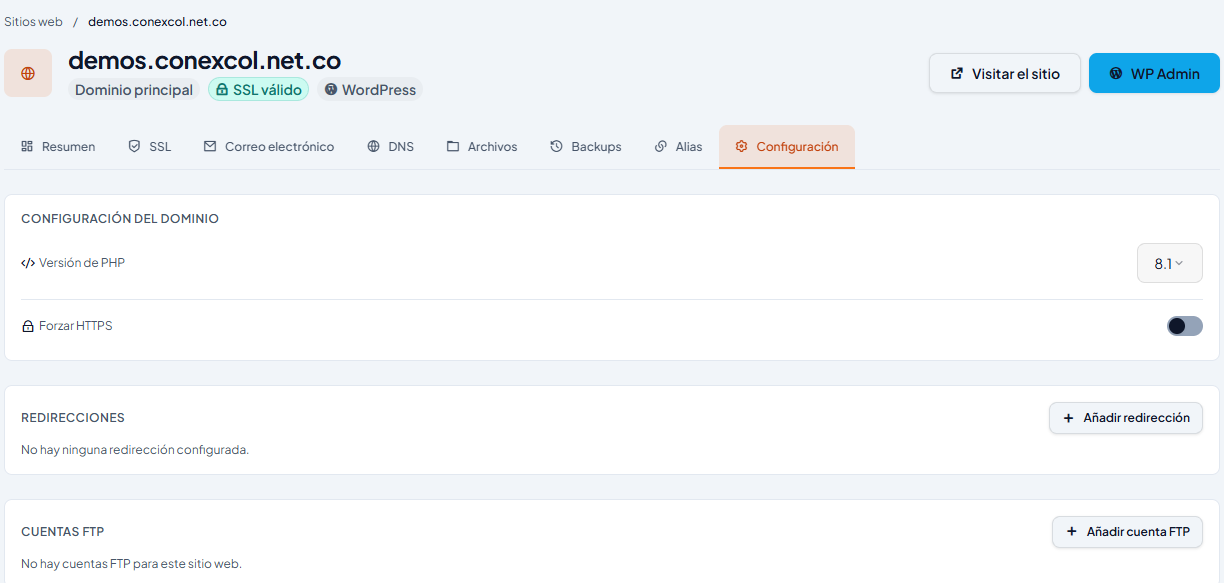
Go up one version at a time if you are far behind (for example, 7.4 to 8.1 and then 8.3), testing the site at each step.
After changing
- Go through the site: home page, a form, the cart and the admin login.
- If something fails (blank page, 500 error), switch back to the previous version on the same screen: it is immediate. The error log tells you which plugin or file failed. See Errors 500, 502, 503, 504 and 508.
Will you do it for me?
Changing the version is simple and you can do it yourself. What is outside our scope is fixing the code of a site or plugin that does not work with modern PHP: that is up to whoever built or maintains the site. If you are unsure which version to use, write to us with your domain and we will take a look.
More information
- Article (Spanish): Por qué actualizar la versión de PHP
- Video (Spanish): Cómo cambiar la versión de PHP en tu hosting