Two-step verification (2FA) means that, besides your password, you need a six-digit code that changes every 30 seconds and only your phone has. If someone steals or guesses your password, they cannot get in without that code. It is the security measure that protects the most for the least effort, and you can turn it on yourself.
What you need
An authenticator app on your phone. Any of these works: Google Authenticator, Microsoft Authenticator or the one you already use for other services.
Turn it on in cPanel
- Log in to cPanel (easiest: from the portal, with the “Open cPanel” button of your service).
- In the left menu, open Security and, on the Two-step verification card, click Activate now. (Classic design: Security → Two-Factor Authentication → Set Up Two-Factor Authentication.)
- Scan the QR code on screen with the app.
- Type the six-digit code from the app and confirm.
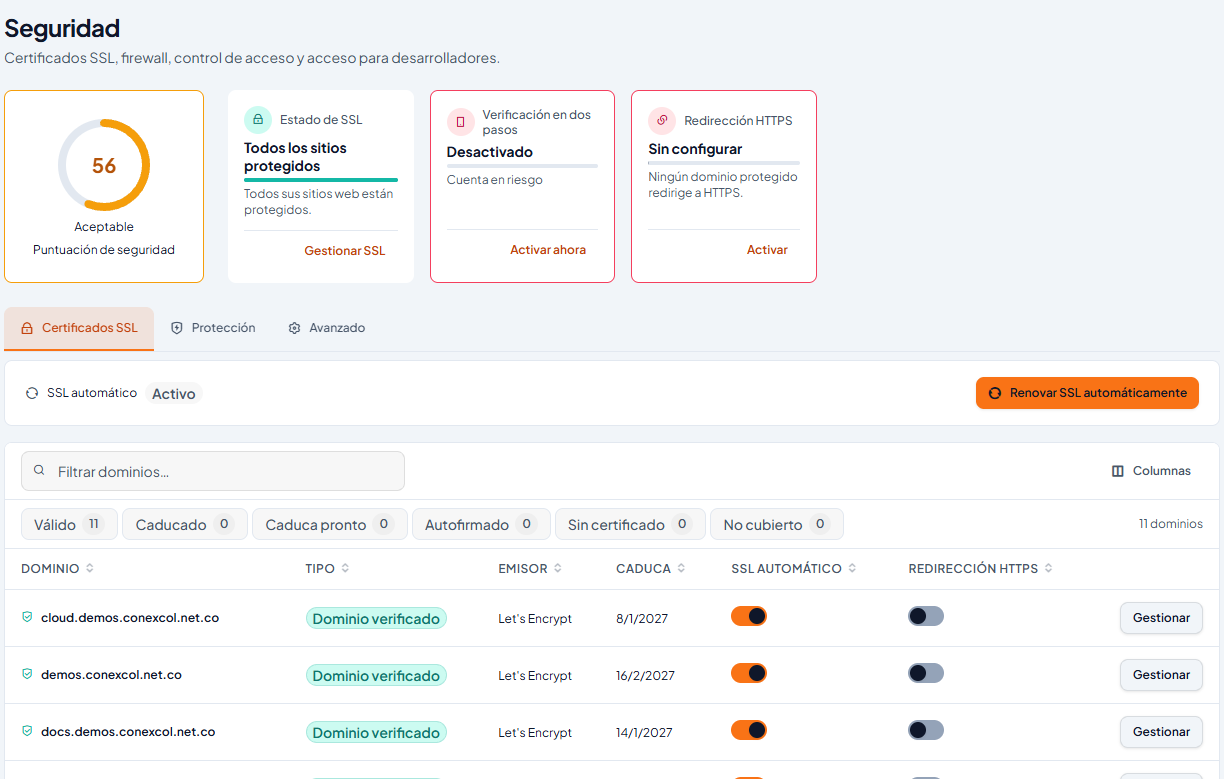
From then on, every time you log in directly to cPanel it will ask for the code.
Turn it on in each mailbox's webmail
Each mailbox has its own password, so it can also have its own verification:
- Log in to webmail with the full address and its password (see Webmail: what it is and how to log in).
- Go to the webmail home page (Webmail Home, in your account menu) and open Two-Factor Authentication.
- Follow the same steps: Set Up, scan the QR, type the code and confirm.
Important: verification protects web access. Outlook or a phone set up with IMAP or POP still log in with the mailbox password, so that password must be strong and unique anyway.
Turn it on in the client portal too
Your portal account (invoices, services, tickets) can also have two-step verification: in the left menu open Security → Two-step verification → Google Authenticator → Activate, and follow the same steps with the app. Screenshot in Spanish.
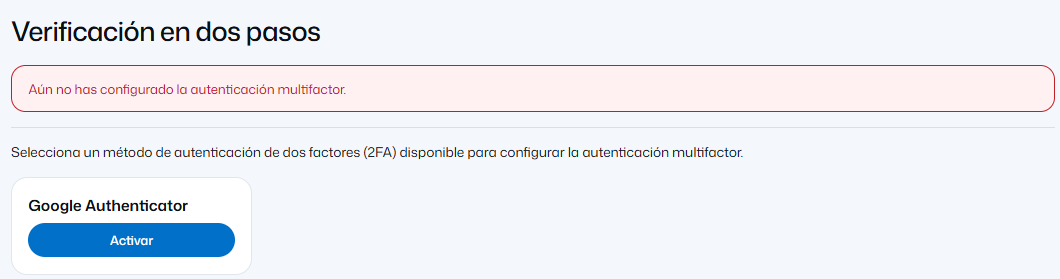
If you do not see the option
If Two-Factor Authentication does not appear in your cPanel or webmail, write to us from the portal and we will check your account.
Before you turn it on: three tips
- Use the app on a phone you control, not a shared one.
- If you change phones, turn verification off on the old one and set it up again on the new one before wiping it, or move your accounts with the app's export feature.
- If you lose your phone, write to us from your account's authorized email. We verify the request is yours before turning it off: that is exactly what verification protects.
Other measures that help
- A different password for cPanel, for the portal and for each mailbox. See How to log in to cPanel.
- Do not share your main password: give other people access as portal contacts. See Give another person access to your account.
- Keep WordPress, its plugins and themes up to date.