In the new cPanel
- Log in to cPanel (easiest: from the portal, with your service's “Open cPanel” button).
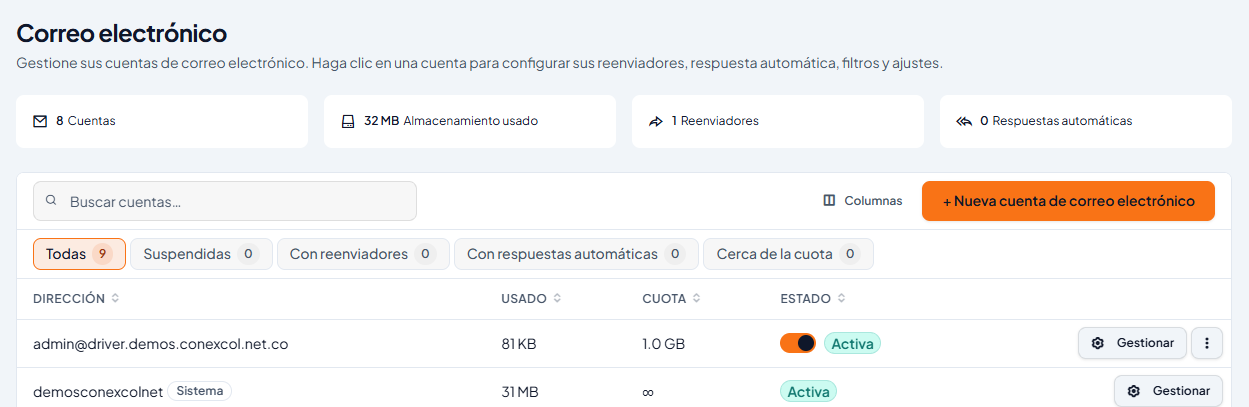
- In the left menu, open Email (“Correo electrónico”) and click + New email account.
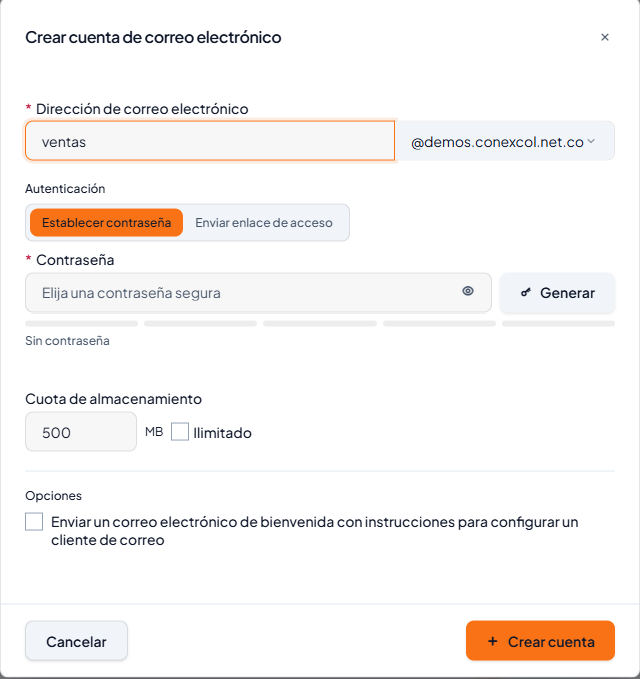
- Type the mailbox name (the part before the @) and, if you have several domains, choose the domain on the right.
- Set a strong password or click Generate. You can also choose Send access link so the person sets their own password.
- Adjust the storage quota if needed and click Create account.
Then, to read email in the browser see Webmail, and to set it up in Outlook or on your phone, set up in Outlook. Screenshots show the panel in Spanish.
If your cPanel has the classic design
If your panel shows icons grouped in sections, you are on the classic design: follow these steps, or switch to the new design from the button at the top of the panel.
To create the domain's own emails, the first thing to do is go to the control panel at midominio.com/cpanel, replacing "mydomain.com" with the address of your website.
- Email.
- Email accounts.
- Add email account.
- Domain: here we select the domain to which the email account will be created
- Mailbox fee if you want the mailbox to have a specific size or Unlimited if you want it to be filled with the size of the service.
For better help, you can watch the following video:
More information
- Article (Spanish): Crear y administrar correo corporativo en cPanel
- Video (Spanish): Cómo crear y administrar cuentas de correo corporativo