In the new cPanel
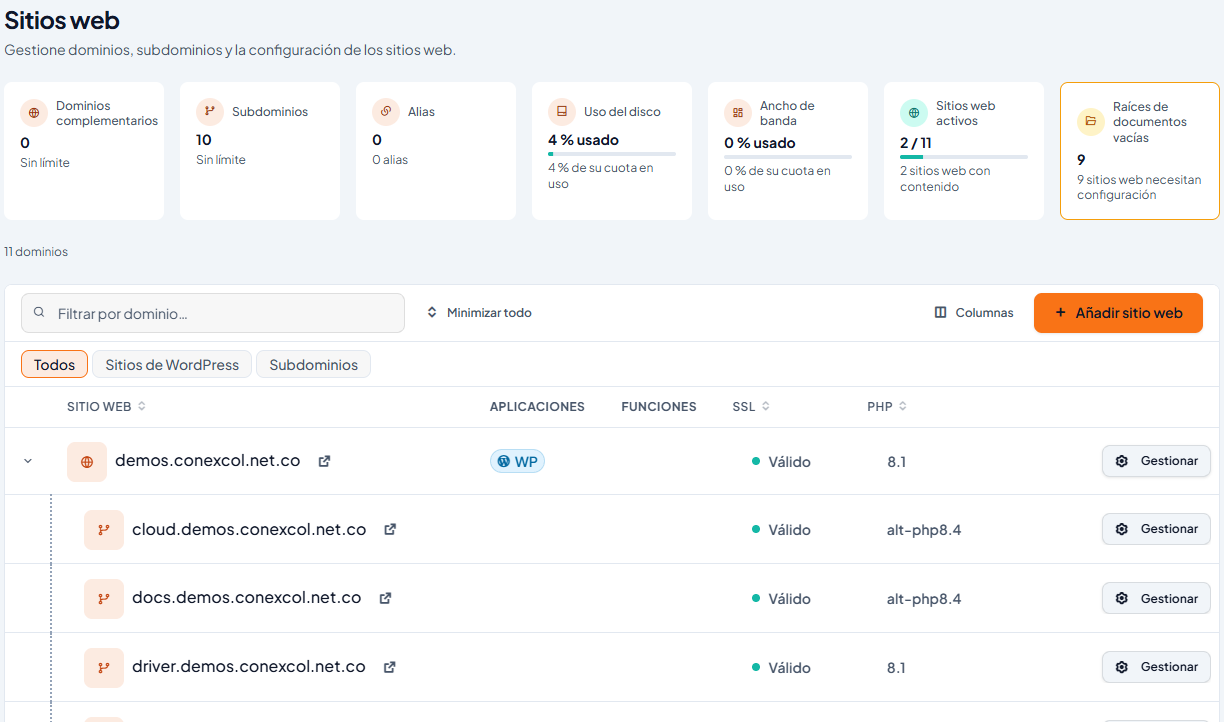
- In the left menu, open Websites and applications and click + Add website.
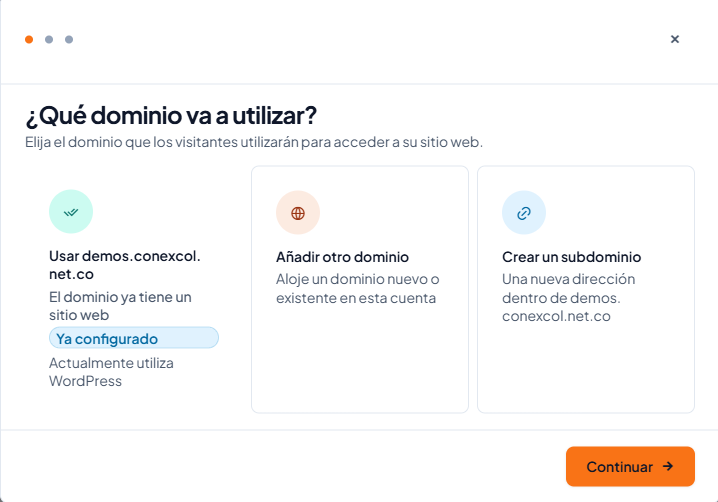
- Choose Add another domain (a new domain or one you already own) or Create a subdomain (for example, shop.yourdomain.com) and click Continue.
- Follow the wizard: type the domain or subdomain and confirm the folder for its files.
For the new domain to load, it must point to your hosting. See Changing your hosting DNS. The SSL certificate is issued automatically once the domain points to it: see Subdomains and SSL certificates. Screenshots show the panel in Spanish.
If your cPanel has the classic design
If your panel shows icons grouped in sections, you are on the classic design: follow these steps, or switch to the new design from the button at the top of the panel.
To add an additional domain to your hosting account, you must first enter your cPanel, then you will be directed to the Domains section

There you will add the additional domain without including the prefixes "htttp: //" or "https: //" or "www"

Likewise in the same section of Domains, you will find the one of subdomains

What you should do is add the name that the new subdomain will carry

For a better explanation you can see our video tutorial:
More information
- Article (Spanish): Añade un nuevo dominio y subdominio en cPanel
- Video (Spanish): Añade un nuevo dominio y subdominio en cPanel